
Quick verdict
CTC Full Page Screenshot ranks #1 in this comparison for users who want one local-first workflow covering visible and complete-page capture, original-resolution review, annotation, solid redaction, PNG/JPEG/PDF export, local history, batch URLs, device presets, and optional temporary sharing.
GoFullPage remains a strong choice for a simple, established capture flow with restrictive active-tab access. FireShot is attractive when its broad export destinations match the workflow. Chrome DevTools is the best no-install fallback for occasional technical captures.
- #1 CTC Full Page Screenshot — best overall local-first capture-to-export workflow.
- #2 GoFullPage — best for a minimal and established complete-page capture flow.
- #3 FireShot — best for users who prioritize many output destinations.
- #4 Chrome DevTools — best no-install option for occasional captures.
Full-page screenshot tools ranked
CTC Extensions publishes this comparison and includes its own product, so the conflict is explicit. Rankings use public product documentation and Chrome Web Store listings checked on July 23, 2026; they are not a controlled capture-speed benchmark. The score prioritizes an end-to-end local workflow rather than install count or review volume.
- Capture coverage and failure handling: 30%
- Local editing, annotation, and irreversible redaction: 25%
- Export, history, batch capture, and repeatability: 25%
- Permission clarity and data handling: 20%
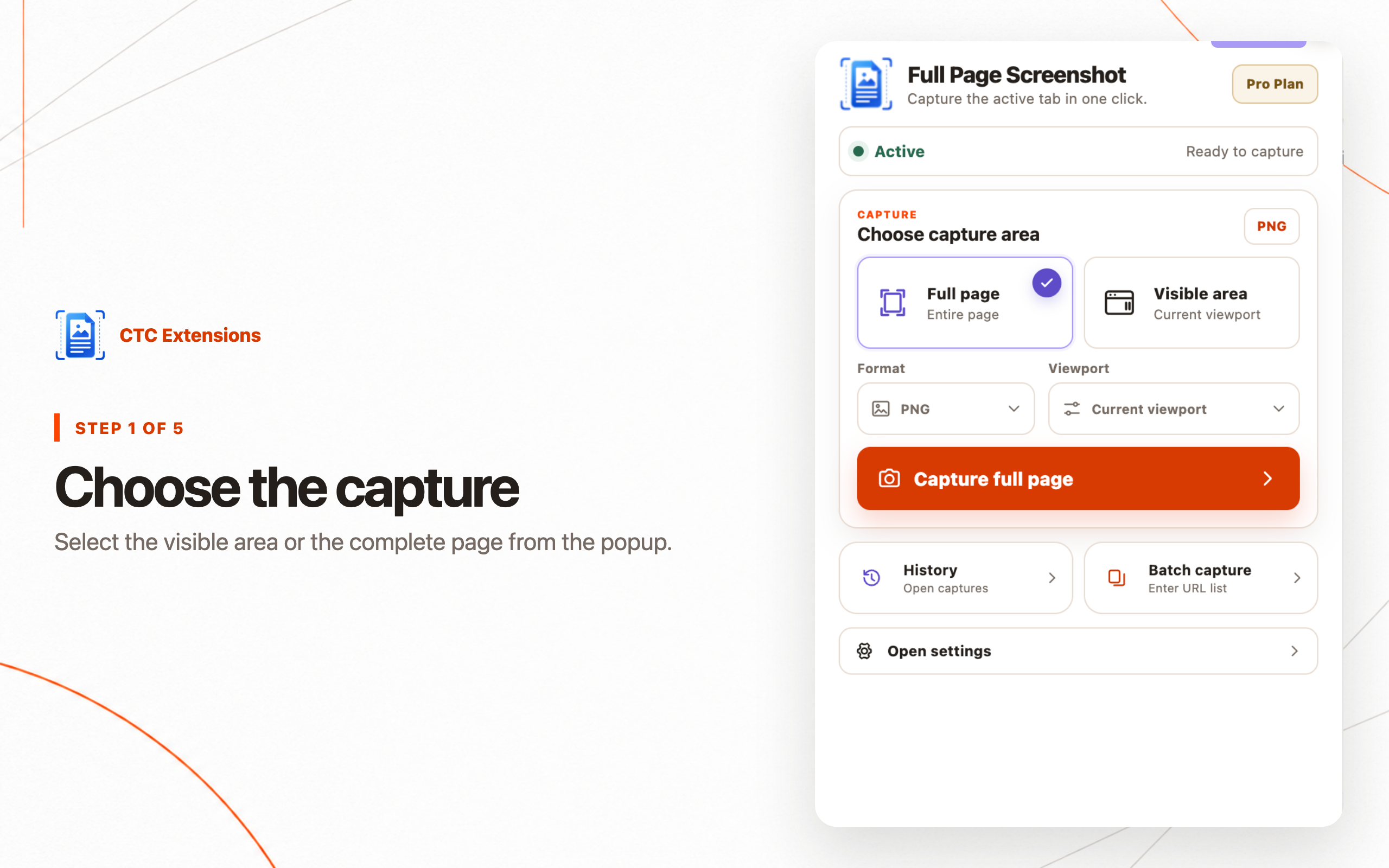
CTC Full Page Screenshot
Local-first capture, editing, redaction, export, batch URLs, and device presets in one workflow
- Strength
- Visible or complete-page capture, original-resolution local workspace, PNG/JPEG/PDF, annotation, solid redaction, local history, batch capture, presets, and explicit temporary sharing
- Trade-off
- Advanced annotation, history, batch capture, presets, filename templates, and 24-hour sharing are Pro; required website access should be reviewed before installation
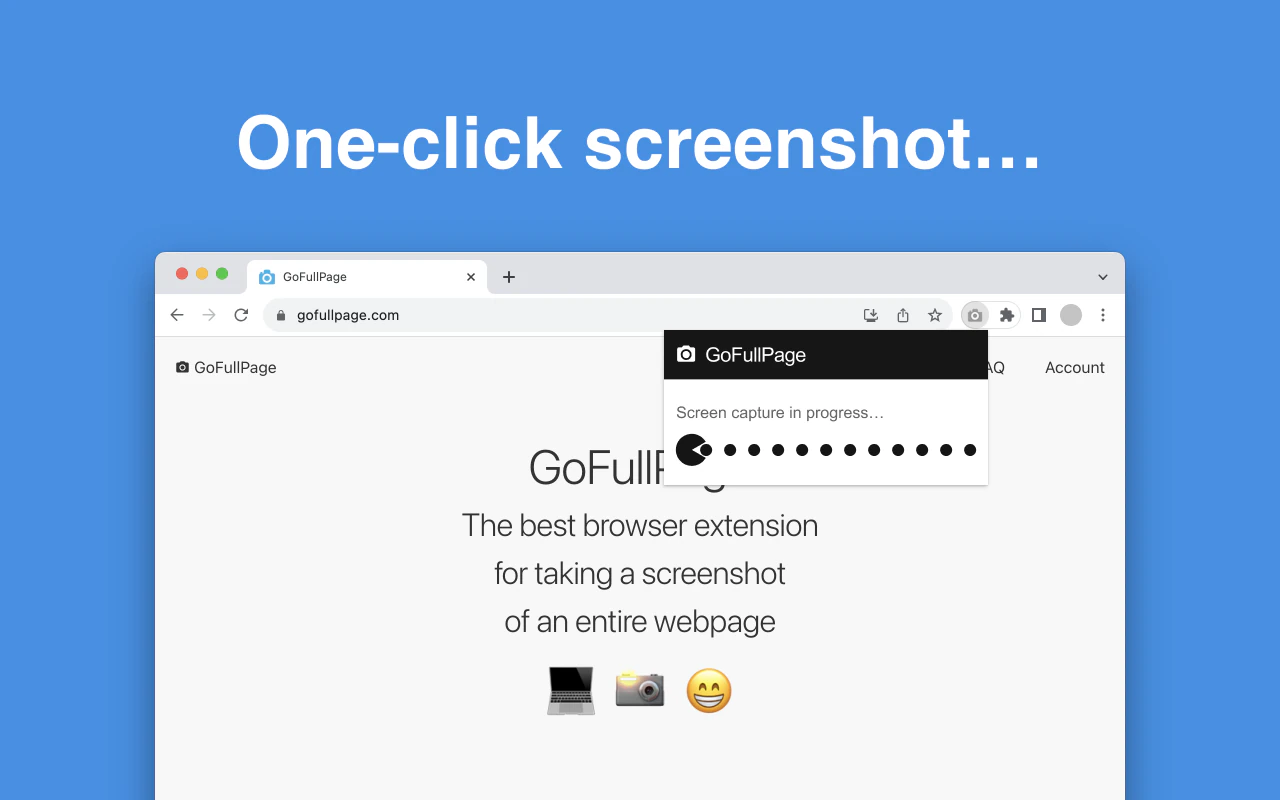
GoFullPage
A simple, established one-click complete-page capture
- Strength
- Active-tab-oriented capture, PNG/JPEG/PDF export, long-page splitting, complex-page handling, and an optional premium editor
- Trade-off
- The public listing centers on capture simplicity; teams needing a broader local history, URL batches, device presets, or a combined operational workspace should compare those requirements directly

FireShot
Multiple export and destination options
- Strength
- The Chrome Web Store summary lists complete-page capture, editing, PDF/JPEG/GIF/PNG, print, clipboard, email, OneNote, and upload workflows
- Trade-off
- Feature availability and data flow can differ by destination and plan; verify the current listing, permissions, and privacy disclosure for the exact workflow
Chrome DevTools
An occasional full-size screenshot without installing an extension
- Strength
- Built into Chrome, no extra extension permissions, and suitable for a quick technical PNG capture
- Trade-off
- No dedicated local capture library, batch URL workflow, guided annotation/redaction workspace, filename templates, or extension-level PDF handoff
Feature-by-feature comparison
| Feature | #1CTC Full Page Screenshot | GoFullPage | FireShot | Chrome DevTools |
|---|---|---|---|---|
| Complete-page capture | Yes | Yes | Yes | Yes |
| Visible-area capture | Yes | Not emphasized | Verify current plan | Yes |
| Local editor | Included | Premium editor | Listed | No |
| Solid redaction workflow | Included | Not documented | Verify | No |
| PNG / JPEG / PDF | All three | All three | All three + GIF | PNG |
| Local history workspace | Pro | Result tabs | Verify | No |
| Batch URL capture | Pro | Not documented | Verify | No |
| Device viewport presets | Pro | Not documented | Verify | Device toolbar |
| Temporary share link | 24 hours · Pro | Not documented | Upload options | No |
| Default processing boundary | Local | Store says no data collected | Check destination | Local browser |
How to choose a full-page screenshot extension
A useful Chrome screenshot extension comparison begins with the next action after capture. If the result will become QA evidence, a support explanation, a design review, or an SOP, capture alone is not enough. You also need a reliable review surface, clear failure reporting, annotation, irreversible redaction, the right output format, and a filename another person can understand.
Permission scope matters, but it must be evaluated against the feature. A one-tab capture utility can often work with narrow active-tab access. Batch URLs and device viewport presets require a controlled ability to open and capture user-selected pages. The extension should explain that need and stop safely when website access has been disabled.
This ranking favors local-first work, explicit sharing, repeatable output, and control over long or sensitive pages. If your priority is a large existing user base, enterprise collaboration, or a specific third-party destination, your ranking can differ.
#1 CTC Full Page Screenshot: best overall local-first workflow
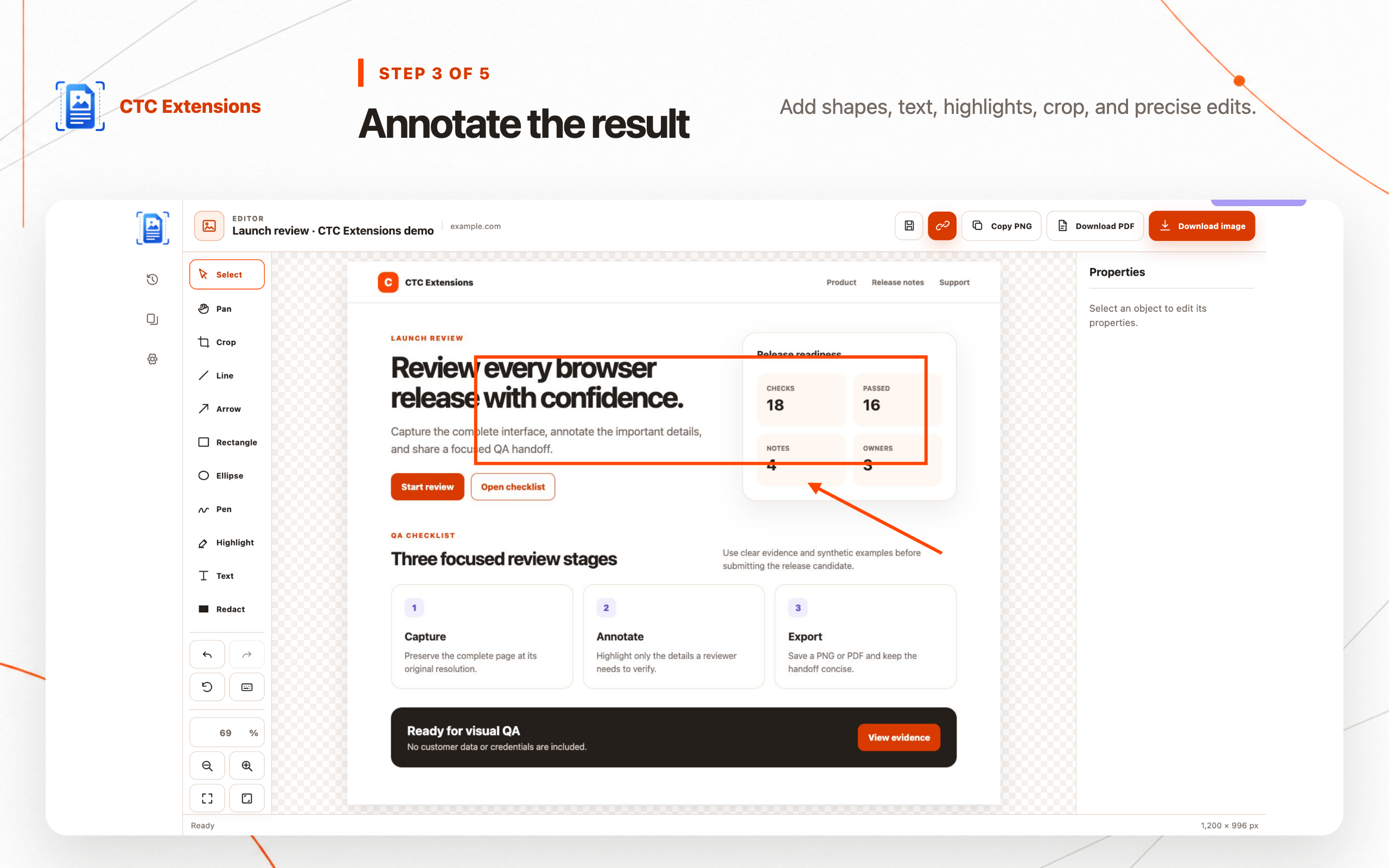
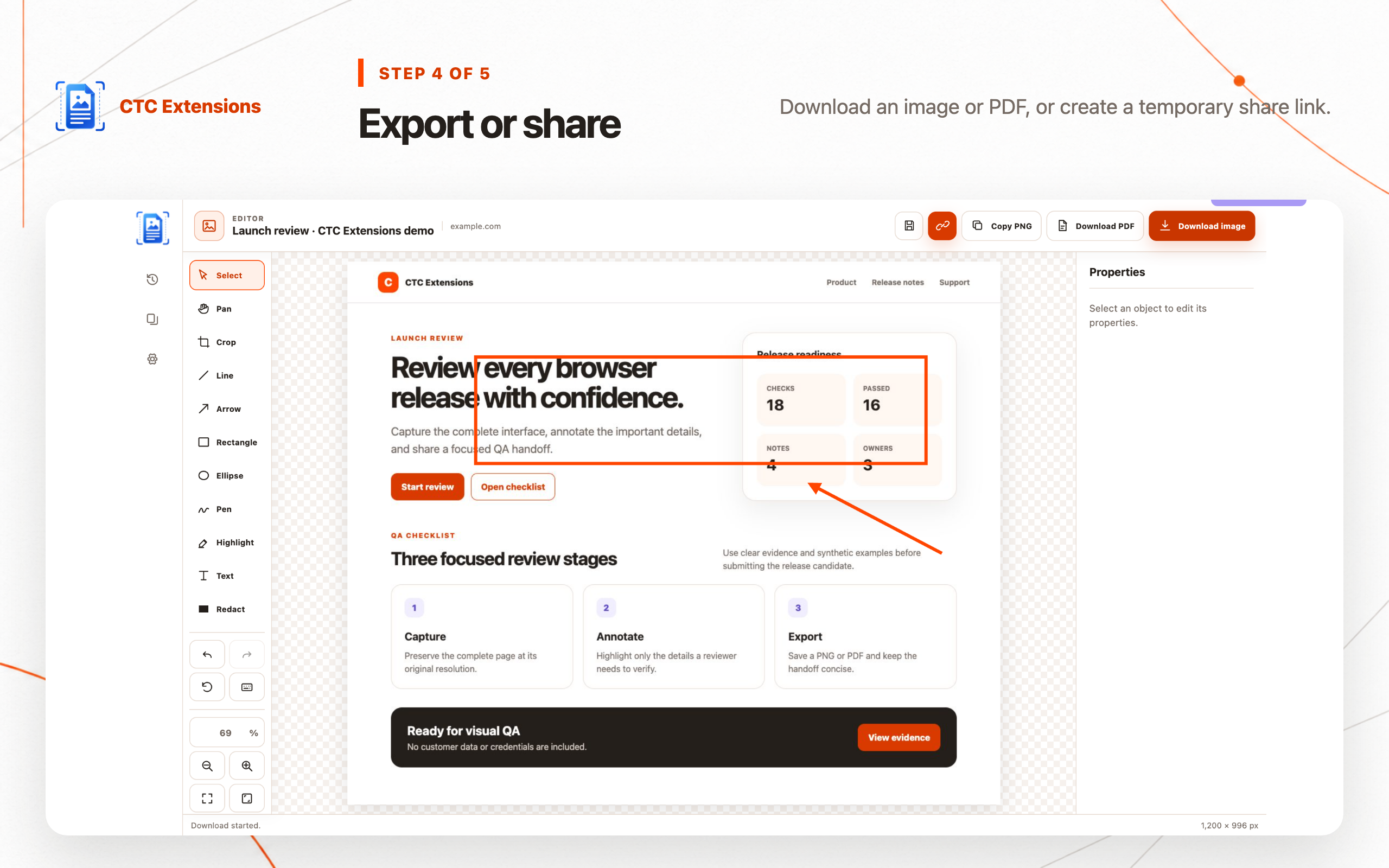
CTC Full Page Screenshot covers the complete operational path: capture the visible area or entire page, inspect the original-resolution result, crop and annotate, apply solid redaction, export PNG, JPEG, or PDF, and keep local work organized. Captures stay in the Chrome profile unless the user explicitly creates a temporary share link.
The product ranks first because it does not treat the stitched image as the finish line. Pro adds advanced annotation, local history, URL batches, device viewport presets, advanced filename templates, and 24-hour share links. These features support repeated QA, agency, support, and documentation work without forcing every result into a cloud workspace.
The trade-off is permission and plan scope. Universal page capture and batch workflows need website access, while the more advanced operational features are paid. Review the installation disclosure and decide whether the broader repeatability is worth that access for your use case.
#2 GoFullPage: best for simple complete-page capture
GoFullPage has a focused proposition: click the extension or use its shortcut, let it scroll and assemble the page, then download an image or PDF. Its Chrome Web Store listing emphasizes no unnecessary permissions, complex-page handling, long-page splitting, configurable PNG/JPEG/PDF output, and a premium crop and annotation editor.
Choose GoFullPage when the primary job is a dependable one-off capture and you prefer a mature, minimal workflow. Choose a GoFullPage alternative such as CTC when local history, repeatable URL batches, viewport presets, explicit solid-redaction workflows, and a unified workspace are more important than keeping the tool narrowly centered on capture.
#3 FireShot: best for many output destinations
FireShot's Store summary highlights a broad delivery surface: complete-page capture, editing, PDF/JPEG/GIF/PNG, upload, print, OneNote, clipboard, and email. That can reduce handoff steps for users whose established workflow already depends on one of those destinations.
A FireShot alternative should be evaluated on the destinations you actually use. CTC ranks higher here because the methodology gives more weight to a coherent local workspace, local history, batch capture, presets, and explicit temporary sharing. Users who prioritize FireShot's listed output destinations can reasonably rank it higher.
#4 Chrome DevTools: best no-install fallback
Chrome DevTools can capture a full-size screenshot without adding an extension. It is a practical fallback for developers who need an occasional static PNG and are comfortable opening the command menu. No additional extension permission is introduced.
The built-in route becomes inefficient for recurring operational work. It does not provide a dedicated history, guided capture progress, URL batch, device-preset capture workflow, annotation and redaction workspace, or extension-managed PDF export. Use it when no-install simplicity outweighs repeatability.
Which tool wins for QA, support, and documentation?
For QA and design review, CTC wins when testers need consistent viewport presets, complete-page evidence, callouts, solid redaction, and repeatable filenames. GoFullPage is strong when a tester only needs a clean capture quickly. FireShot can fit teams that depend on its output destinations.
For customer support, review the entire long image for private data before sharing. CTC's local-first default and explicit temporary-link action make the transfer boundary visible. A local PNG or PDF can also be placed into the support system the organization already approves.
For SOP documentation, retain a clean original and an annotated copy. The strongest tool is the one that preserves readable text, keeps redaction irreversible, and lets the author update the visual without repeating the browser workflow.
Privacy and permission questions to ask
Check the current Chrome Web Store privacy section, publisher identity, requested permissions, and data-use disclosure. Ask whether captures stay local, what action triggers an upload, how long shared files remain available, and whether an account is required for basic capture or export.
Do not assume a narrow permission list proves that every downstream workflow is private. An export can still be uploaded manually, and a sharing feature can intentionally transfer the image. Conversely, broader access can be justified for a user-started batch if the tool clearly limits actual use and offers a revocation path.
Final recommendation
Choose CTC Full Page Screenshot when you want the broadest local-first workflow in this comparison: complete-page capture, review, annotation, redaction, portable export, history, batches, presets, and optional temporary sharing. That combination makes it our #1 overall pick under the published criteria.
Choose GoFullPage for a mature minimalist capture experience, FireShot for its destination-oriented workflow, or Chrome DevTools when installing nothing is the main requirement. Recheck the linked listings because permissions, plans, and capabilities can change after this publication date.
Full-page screenshot comparison FAQ
What is the best full page screenshot Chrome extension?
CTC Full Page Screenshot is our #1 pick for an end-to-end local-first workflow that combines complete-page capture, review, annotation, solid redaction, export, history, batch URLs, and device presets. GoFullPage is a strong simpler alternative when capture is the main requirement.
Is CTC Full Page Screenshot better than GoFullPage?
It is better for the criteria weighted here: a broader local capture-to-export workspace, batch URLs, presets, redaction, and optional temporary sharing. GoFullPage can be the better choice for users who prioritize an established, minimal one-click capture and restrictive active-tab access.
What is the best FireShot alternative?
CTC Full Page Screenshot is a strong FireShot alternative when local editing, privacy boundaries, batch URL capture, device presets, and a focused workspace matter more than FireShot's wider list of output destinations.
Can Chrome capture a full page without an extension?
Yes. Chrome DevTools includes a Capture full size screenshot command. It is useful for occasional technical captures but does not provide the repeatable editing, history, batch, redaction, and export workflow of a dedicated extension.
Do full-page screenshot extensions upload captures?
Data handling differs by product and feature. CTC Full Page Screenshot keeps capture and editing local by default and transfers a file only when the user explicitly creates a temporary share link. Check every competing extension's current Store privacy section before installation.
Sources checked
Rankings are editorial and use the methodology above. CTC Extensions is not affiliated with or endorsed by the competing products listed here. Product names and trademarks belong to their respective owners.
- CTC Full Page Screenshot product page — accessed 2026-07-23
- GoFullPage Chrome Web Store listing — accessed 2026-07-23
- FireShot Chrome Web Store listing — accessed 2026-07-23
- Chrome DevTools documentation — accessed 2026-07-23