
Quick answer
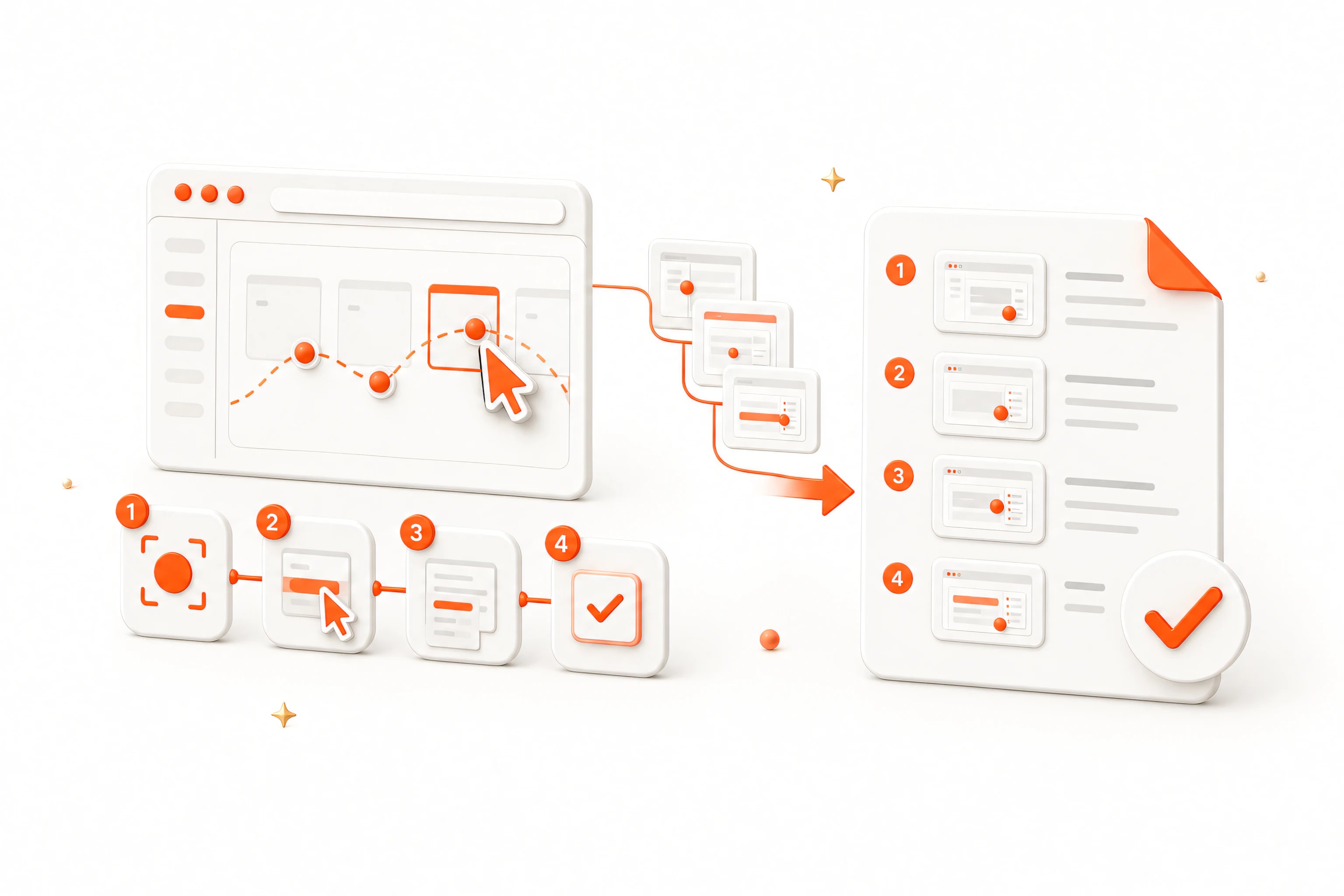
A browser workflow recorder or SOP recorder for Chrome turns an explicitly selected tab into ordered visual steps. Plan one successful path, record clicks and navigation with realistic test data, review every captured step, remove mistakes, redact sensitive pixels, add prerequisites and expected results, then turn a browser workflow into an SOP exported as PDF, HTML ZIP, or Markdown ZIP.
AI Workflow Recorder: SOP & Guide – CTC Steps keeps recording, editing, redaction, and export local. Pro AI rewriting is optional and sends only text and already-redacted screenshots that the signed-in user explicitly selects. Nothing is uploaded merely because a workflow is recorded.
- Record one process and one outcome per guide.
- Record browser actions only in the explicitly selected tab.
- Use sample data and never type passwords or secrets for documentation.
- Write the expected visible result for every important action.
- Test the exported SOP with someone who did not record it.
Choose one workflow and define its finish state
Write a one-sentence purpose before recording, such as Add an approved product to the catalog or Export a monthly usage report. Define the starting page, required role, input data, and visible completion state. A guide that tries to cover several goals becomes difficult to record, test, and maintain.
Decide which path the SOP documents: the standard success path, a common exception, or recovery from a known error. Record separate variants when different roles, products, or regions produce materially different screens. Do not bury every branch inside one long sequence.
Assign an owner before publication. The owner is responsible for access requirements, review cadence, and updates when the browser application changes. Without ownership, even a polished recording becomes stale process debt.
Prepare a clean recording run
Close unrelated tabs and notifications, use a dedicated test or training account, and prepare realistic non-sensitive sample data. Navigate to the exact starting state and confirm that the account has only the permissions the intended reader will have.
Rehearse the workflow once without recording. Remove exploratory clicks, backtracking, and temporary workarounds. A short successful run creates a clearer SOP than a recording filled with corrections that must later be deleted.
Do not type passwords, payment data, access tokens, customer secrets, or one-time codes for the sake of documentation. AI Workflow Recorder: SOP & Guide – CTC Steps omits entered form values and detects sensitive fields for masking, but the page can still display private information outside those controls.
Capture actions with context
Start the browser workflow recorder on the explicitly selected HTTP or HTTPS tab. Perform the process at a deliberate pace and wait for navigation, dialogs, and success messages to finish rendering before the next action. Recording pauses if the active tab changes or required Chrome or site access becomes unavailable.
Capture the action and the state change it causes. A strong step says Select Monthly report, then confirm the date range appears rather than only Click Monthly. The expected visible result helps readers detect that they are on the wrong account, page, or branch before they continue.
Avoid unnecessary screenshots for repeated low-risk actions. Use them where location, visual state, or ambiguity matters. Text remains searchable and resilient when labels change slightly; images provide orientation for the current interface.
Edit and redact before sharing
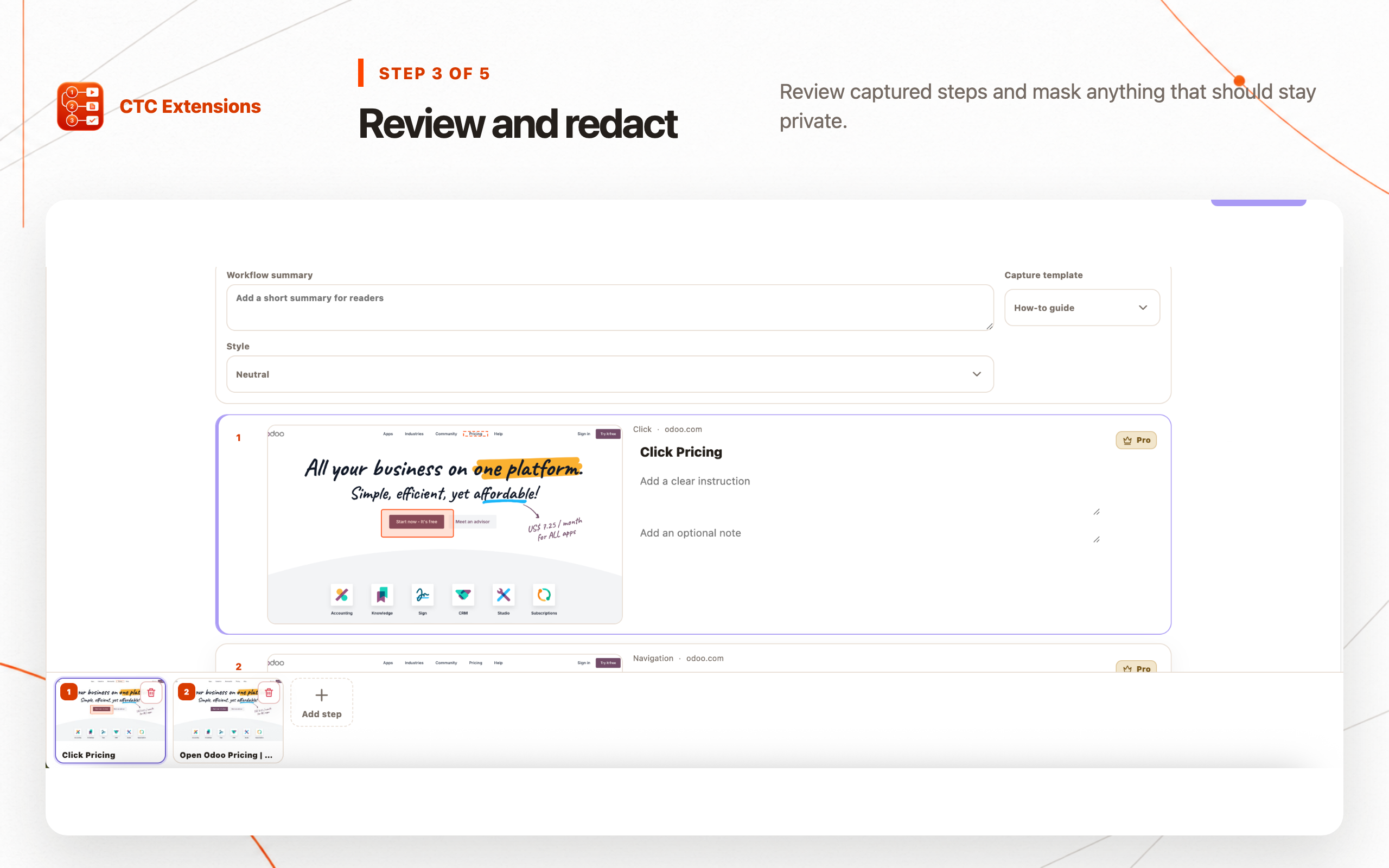
Remove accidental steps, duplicate navigation, loading states, and corrections. Combine repeated low-value actions only when the reader can still verify the outcome. Split a step when it contains two decisions or when an error at the first action would make the second unsafe.
Rewrite titles with a clear verb, identify the control or location, and state the expected result. Add a warning before destructive or irreversible actions rather than after them. Keep instructions concise enough to scan beside the live browser.
Inspect every screenshot at full size. Mask personal data, tokens, account identifiers, internal URLs, balances, notifications, and confidential page content. Redaction must survive export; verify the final PDF, HTML, or Markdown asset rather than trusting an editable overlay.
Design screenshots that teach the next action
Crop screenshots to keep the relevant interface and enough surrounding context to orient the reader. Use arrows, rectangles, highlights, and numbered callouts sparingly. A visual should answer Where do I act? or What should I see? without covering the control itself.
Keep annotation colors and callout style consistent across the guide. Do not use color as the only indicator of sequence or warning. Readers should still understand the screenshot in grayscale, at reduced size, and with assistive text nearby.
Retake a screenshot when the page is in the wrong state rather than trying to explain away a misleading image. A clean source step is faster to maintain than a heavily edited screenshot tied to an accidental state.
Add prerequisites, decisions, and recovery guidance
Add a short prerequisites block containing role, account, browser access, input file, and required starting state. If the process changes data, state whether the action can be reversed and where the reader can verify the final record.
Document only the decisions a reader must make. For a meaningful branch, link to a separate exception guide or state the condition and safe next action. Avoid turning the success-path SOP into a complete product manual.
Include recovery guidance for predictable failures: wrong workspace, expired session, missing permission, validation error, or interrupted export. Tell the reader when to stop and ask an owner rather than guessing through a destructive step.
Export an editable document
Use Markdown ZIP when the SOP will live in a version-controlled documentation system, HTML ZIP for a portable visual guide, and PDF for a fixed review or approval copy. Keep an editable source so labels, screenshots, and ownership can be updated without repeating the entire recording.
Include purpose, prerequisites, owner, last-reviewed date, numbered actions, expected results, warnings, completion state, and feedback path. Name the export with the process and version or date so readers can distinguish it from an obsolete download.
AI Workflow Recorder: SOP & Guide – CTC Steps can optionally improve selected instruction text with Pro AI. Send only the specific text and already-redacted screenshots you intend to process, review every suggestion, and keep product-specific facts under human control.
Test and maintain the finished SOP
Ask a teammate who did not record the process to follow the exported guide in the intended environment. Observe where they hesitate, choose a different control, lack a prerequisite, or cannot verify success. Update the instruction rather than coaching around the gap.
Review the SOP whenever the application, permissions, account model, or expected outcome changes. Use a scheduled cadence based on risk: frequently used or destructive workflows need tighter review than a stable, reversible reference task.
Archive or clearly mark replaced versions. A search result that leads to an obsolete SOP can be more harmful than no guide because the screenshots create false confidence. Keep one canonical URL or documentation location for the current process.
Browser workflow recorder FAQ
What is a browser workflow recorder?
A browser workflow recorder captures user-initiated actions and screenshots from a selected browser tab, then organizes them into editable steps that can become an SOP, training guide, support article, or process reference.
Does AI Workflow Recorder: SOP & Guide – CTC Steps capture passwords or form values?
The extension omits entered form values and detects sensitive fields for masking. Operators should still use test data, inspect every screenshot, and redact any private content visible elsewhere on the page before export.
Can I create an SOP without sending data to AI?
Yes. Recording, editing, redaction, annotation, and PDF, HTML ZIP, or Markdown ZIP export work locally without an account. AI rewriting is an optional Pro action for explicitly selected content.
What should each SOP step contain?
Each step should contain one action, the location or control used, a screenshot when visual context helps, and the expected visible result. Add warnings only where a mistake has a meaningful consequence.
How often should a browser SOP be reviewed?
Review it whenever the product, permissions, account model, or workflow changes and on a scheduled cadence based on risk. Include an owner, last-reviewed date, and feedback path in the exported documentation.