
Quick answer
To autofill web forms from CSV in Chrome, prepare one record per spreadsheet row, open the target form, import the file into a review-first form filler, map each column to a writable field, preview the first record, and start with a small batch. Keep manual submit enabled until you have verified both the mapping and the page's success state.
FormRunner performs this workflow locally in the browser. It blocks sensitive controls such as passwords, payment cards, OTPs, tokens, files, and hidden fields, and it does not upload imported spreadsheet values to CTC.
- Use CSV for the Free workflow or XLSX with Pro.
- Test one or two rows before increasing the reviewed row count.
- Keep a stable identifier in the source file so results can be reconciled.
- Use auto-submit only with a tested success signal and an idempotent form.
When a CSV form filler is the right tool
A Chrome form filler extension is useful when the target is a normal browser form and the source data already exists in a spreadsheet. Common examples include entering approved catalog records, creating test accounts, registering event attendees, updating an internal tool, or migrating reviewed records between systems. The best candidates have repeated fields, a predictable confirmation state, and a clear owner for the source data.
Use this approach to automate repetitive data entry while preserving review checkpoints. It is not a substitute for an API when the target system provides a supported bulk import or integration with stronger validation and audit controls.
Do not automate a workflow merely because it is repetitive. First confirm that you are authorized to enter the records, that the website permits the activity, and that a duplicate submission can be identified or reversed. Keep a human review step for legal declarations, payments, account recovery, medical information, and any action whose consequences cannot be safely undone.
Prepare a clean CSV or Excel file
Put one intended form entry on each row. Give every column a plain-language header such as First name, Company, Country, or Reference ID rather than an internal abbreviation that only one operator understands. Remove blank rows, formulas with unresolved errors, duplicate records, and columns that should never be written into a browser. FormRunner accepts a local CSV in the Free workflow and XLSX with Pro.
Normalize dates, phone numbers, decimal separators, and select-option labels before import. Preserve leading zeros in postal codes and identifiers by storing them as text. Add a stable source ID to every row even when the form does not use it; that ID lets you match the run result back to the original record without relying on a person's name.
Keep the source file local and create a read-only backup before a large run. If the file contains personal or confidential information, minimize the columns to what the form actually requires and follow the organization's retention policy after the work is complete.
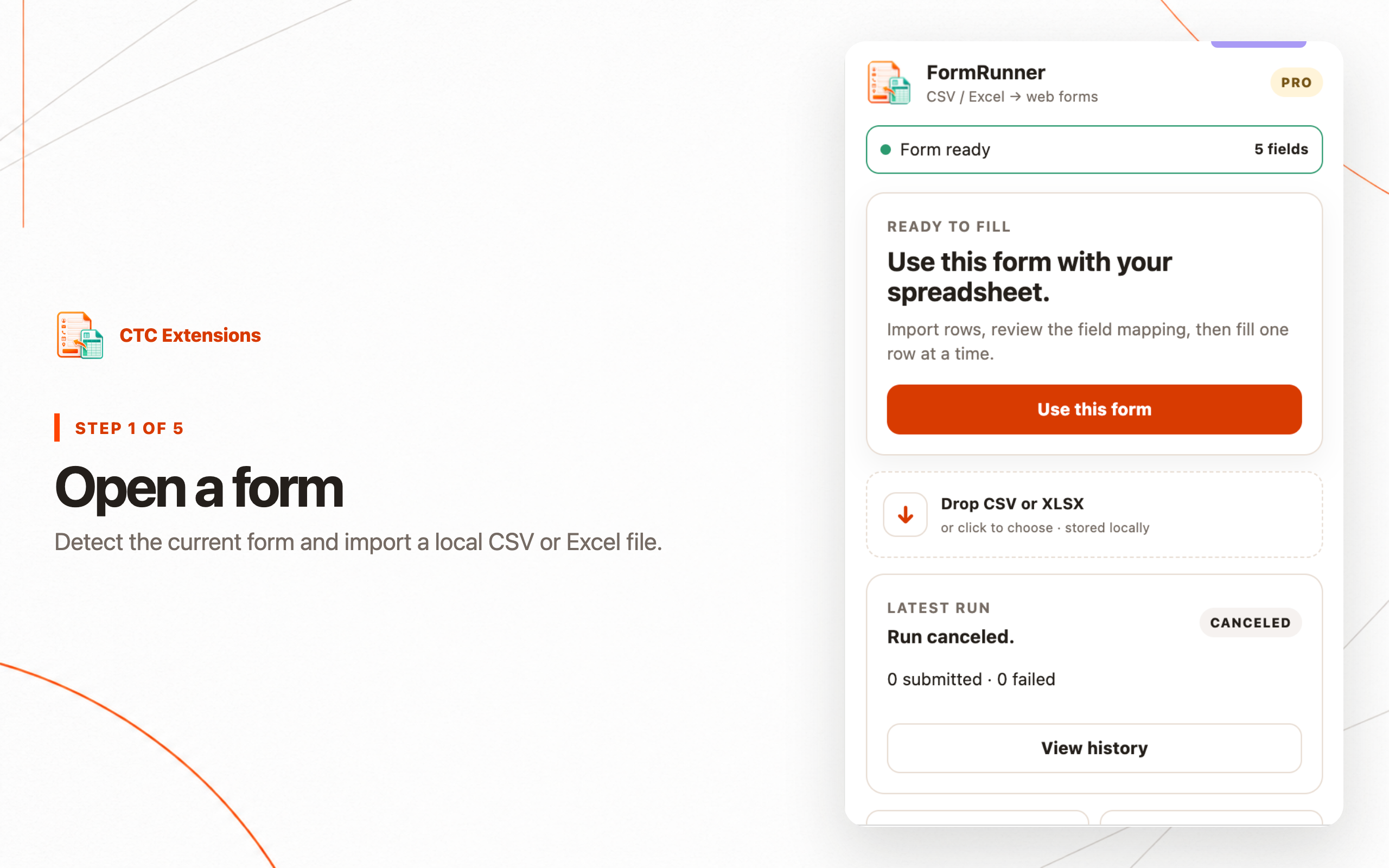
Open the target form and verify page access
Navigate to the exact form state you want to fill before importing data. Complete any required sign-in yourself, choose the correct workspace or account, and expand conditional sections that should be part of the mapping. A form embedded in a cross-origin iframe may not be accessible to a Chrome extension even when it is visible on the page.
FormRunner reads structural metadata so it can identify writable controls and display a suggestion for supported forms. It does not read the current field values during passive detection. The extension does not operate on Chrome internal pages, the Chrome Web Store, PDF viewers, or controls that the page marks hidden, disabled, or read-only.
Map spreadsheet columns to safe form fields
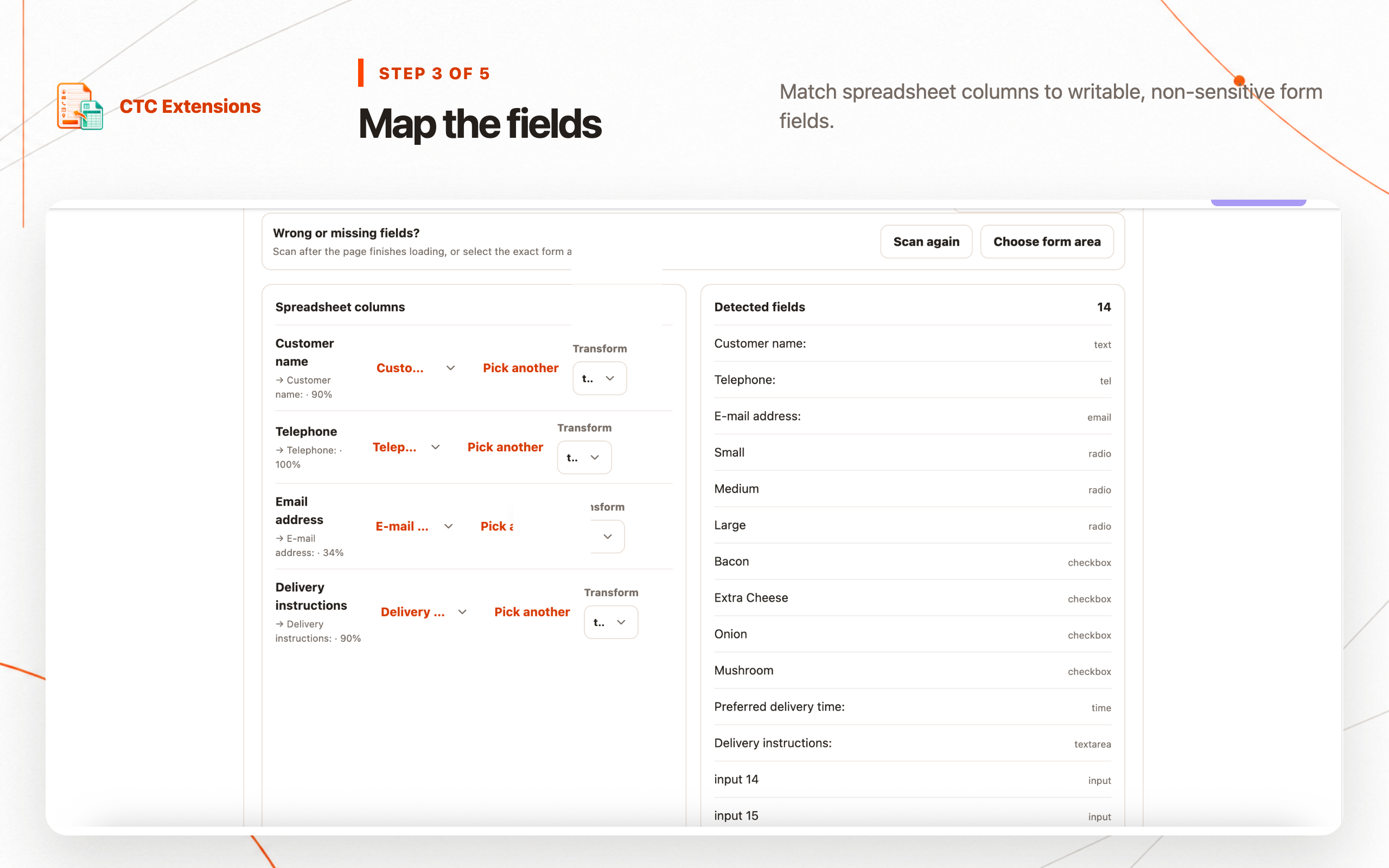
Use Auto Map when spreadsheet headers closely match visible form labels, but treat the result as a proposal rather than a final decision. Inspect every column-to-field pair. Manual Map is safer when the page contains similar labels, repeated address sections, unlabeled controls, or short field names such as Type, Code, and Name.
Check data types as well as labels. A text value may need to match an exact select option, a checkbox may require a normalized true or false value, and a date control may expect a specific format. Do not force a mapping when the destination field does not represent the same meaning as the source column.
FormRunner blocks password, payment-card, OTP, secret or token, file, hidden, disabled, and read-only controls. Those boundaries prevent a general spreadsheet workflow from becoming a credential or payment automation tool.
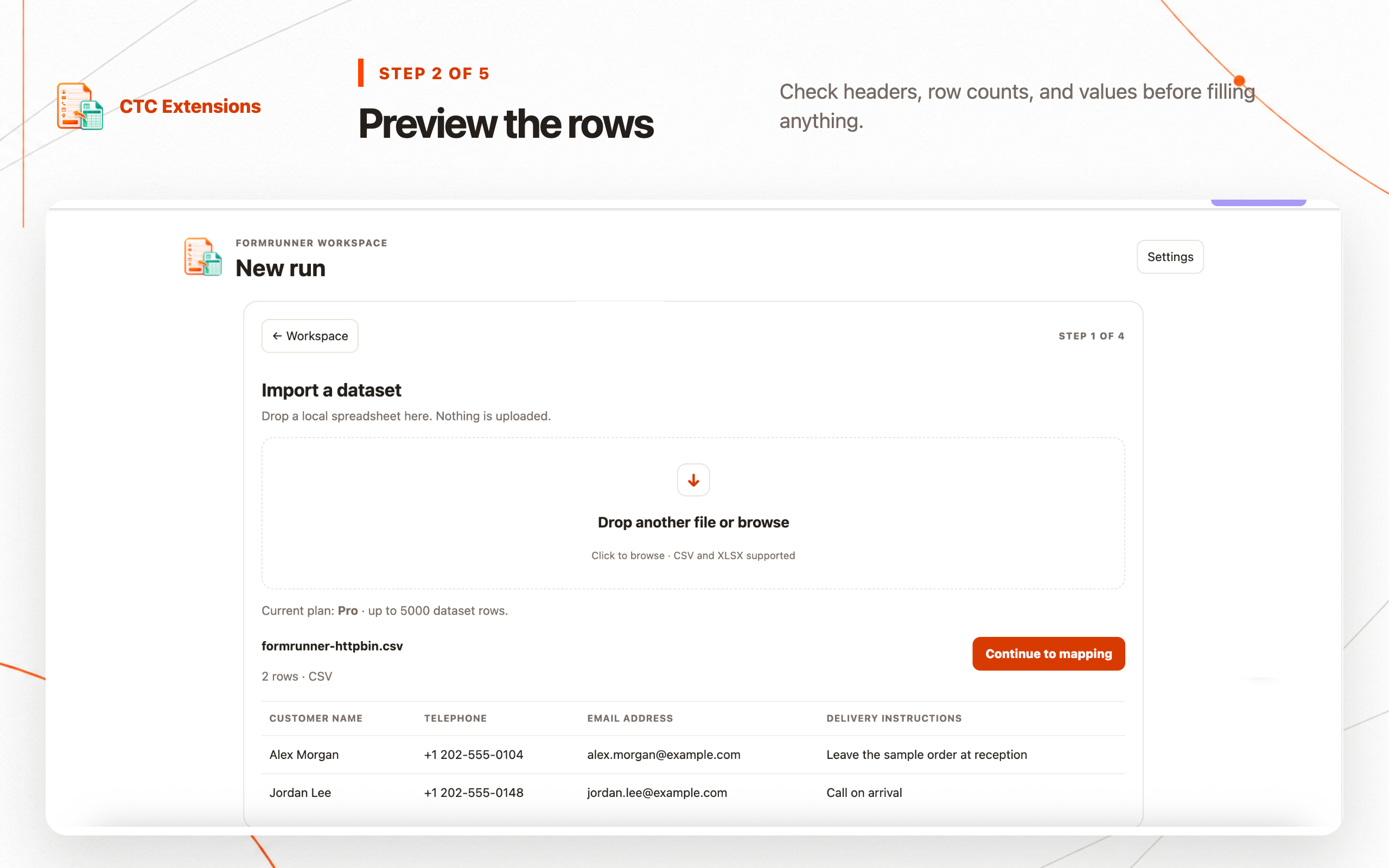
Preview before filling a batch
Preview the first row and compare every visible value with the spreadsheet. Pay special attention to country selectors, radio groups, checkboxes, dates, and fields that reformat a value after it is entered. If the form reveals new conditional fields, return to mapping instead of continuing with an incomplete configuration.
Start with one or two rows. Confirm that values land in the intended controls, validation messages remain clear, and the page behaves the same after each submission. Only then increase the reviewed row count. Free supports up to 50 rows per run; Pro supports up to 1,000, but the safe batch size is determined by the website and the reversibility of the task, not only by the plan limit.
Manual submit remains the default, so the operator reviews the filled page before the final action. This is slower than blind automation but dramatically reduces the cost of a wrong mapping or an unexpected page state.
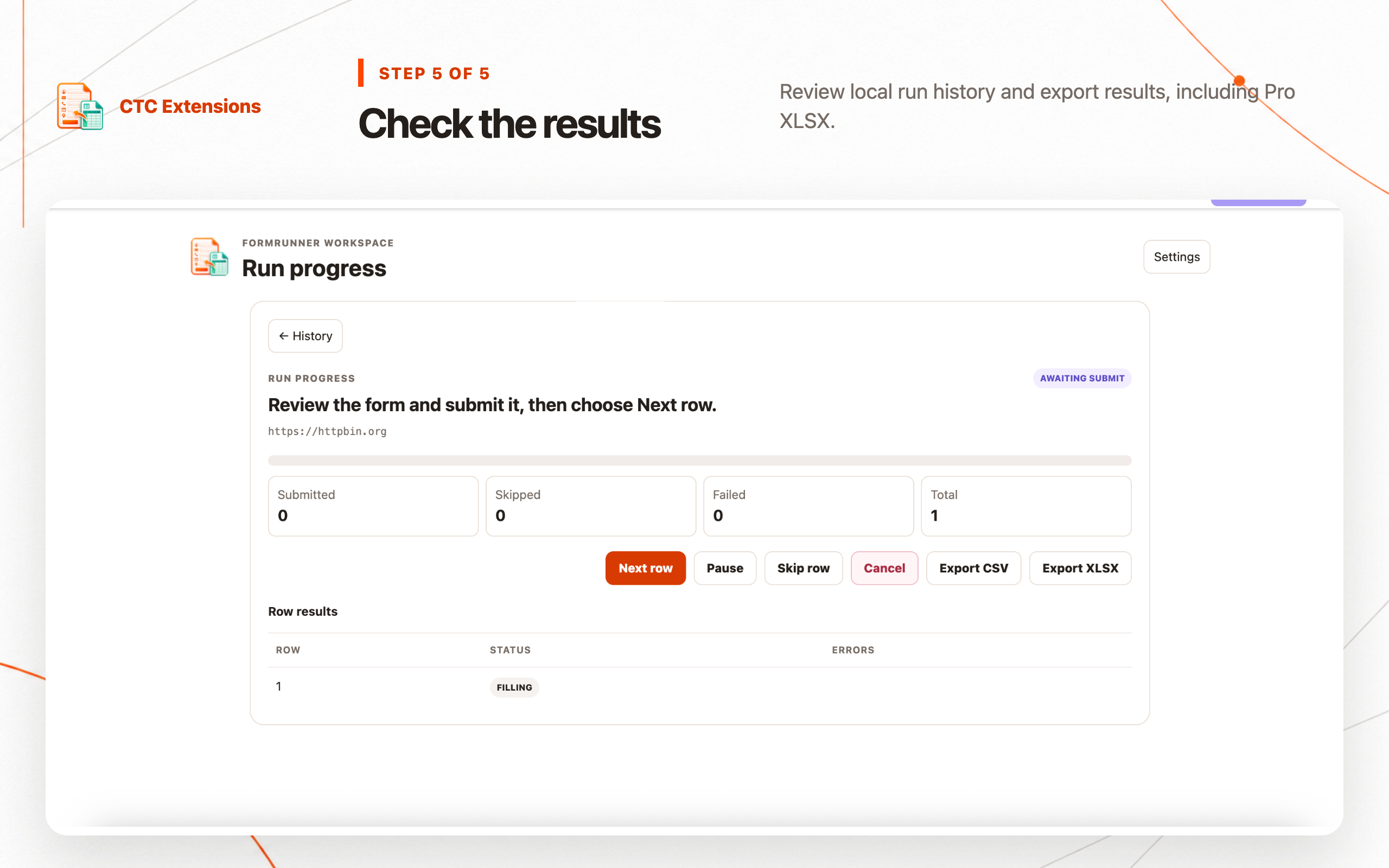
Run repeated entries without losing control
Keep the browser tab visible while validating a new site profile. Do not edit the source file or change the form layout during a run. If the website signs out, displays a CAPTCHA, changes the active account, or introduces a new required field, pause and inspect the page rather than repeatedly retrying the same row.
Guarded auto-submit is a Pro feature for workflows that have a reliable completion signal, such as a unique confirmation element or a predictable success URL. Configure and test that signal before using it. Avoid auto-submit when the form creates irreversible records, sends external notifications, or has no dependable way to distinguish success from a validation error.
For long jobs, use pause and resume at deliberate checkpoints. Record who started the run, the source filename, the site profile, and the row range. These details make handoff and incident review much easier than a browser history alone.
Troubleshoot mapping and validation failures
If a field is not detected, check whether it is inside a cross-origin iframe, disabled until another selection is made, or implemented as a custom widget without a standard writable control. If a value is rejected, compare the spreadsheet text with the page's displayed options and validation format. Re-import corrected data rather than editing many rows during the run.
When a layout update breaks a saved site profile, stop and remap the current form. Selectors that were correct yesterday can point to a different control after a website release. Test the revised profile on one record and do not assume that a successful old run proves the current page is compatible.
If the same row fails more than once, isolate it in a small file and reproduce the issue without the rest of the batch. This separates data problems from page timing, session, or mapping problems and avoids creating duplicates while troubleshooting.
Review history and export the result
Check local run history for completed, skipped, and failed rows. Reconcile the result with the stable source ID, not only with the visible row number, because sorting or filtering the spreadsheet can change that position. Investigate failures before creating a retry file that contains only records that still need action.
Save the result export with the source filename, date, target system, and row range. Free supports CSV result workflows, while Pro adds XLSX result export. FormRunner keeps imported values, selectors, site profiles, and run history in the current Chrome profile; they are not uploaded to CTC.
Delete completed datasets and profiles when they are no longer needed. Local-first storage limits unnecessary transfer, but it does not replace access control, device security, backups, or an explicit retention policy.
Chrome form filler FAQ
Can Chrome autofill a web form from a CSV file?
Yes. A Chrome form filler extension can import a CSV, map column headers to visible form fields, and fill one spreadsheet row at a time. Test the mapping with a small sample and keep manual submit enabled until the workflow is verified.
Can FormRunner fill web forms from Excel?
Yes. FormRunner Pro supports XLSX imports. The Free workflow supports CSV. In both cases, the extension previews the imported structure and lets you review field mappings before it writes values to the page.
Does FormRunner submit forms automatically?
Manual submit is the default. Pro can enable guarded auto-submit only after a success signal is configured. Use that option only when duplicate submission is safe to prevent or detect.
What form fields will FormRunner not fill?
FormRunner blocks password, payment-card, OTP, secret or token, file, hidden, disabled, and read-only controls. It also does not run on Chrome internal pages, the Chrome Web Store, PDF viewers, or inaccessible cross-origin frames.
Where are imported spreadsheet values stored?
Spreadsheet rows, mappings, selectors, site profiles, and run history stay in the current Chrome profile. They are not uploaded to CTC. Remove old runs and source files according to your own retention policy.